
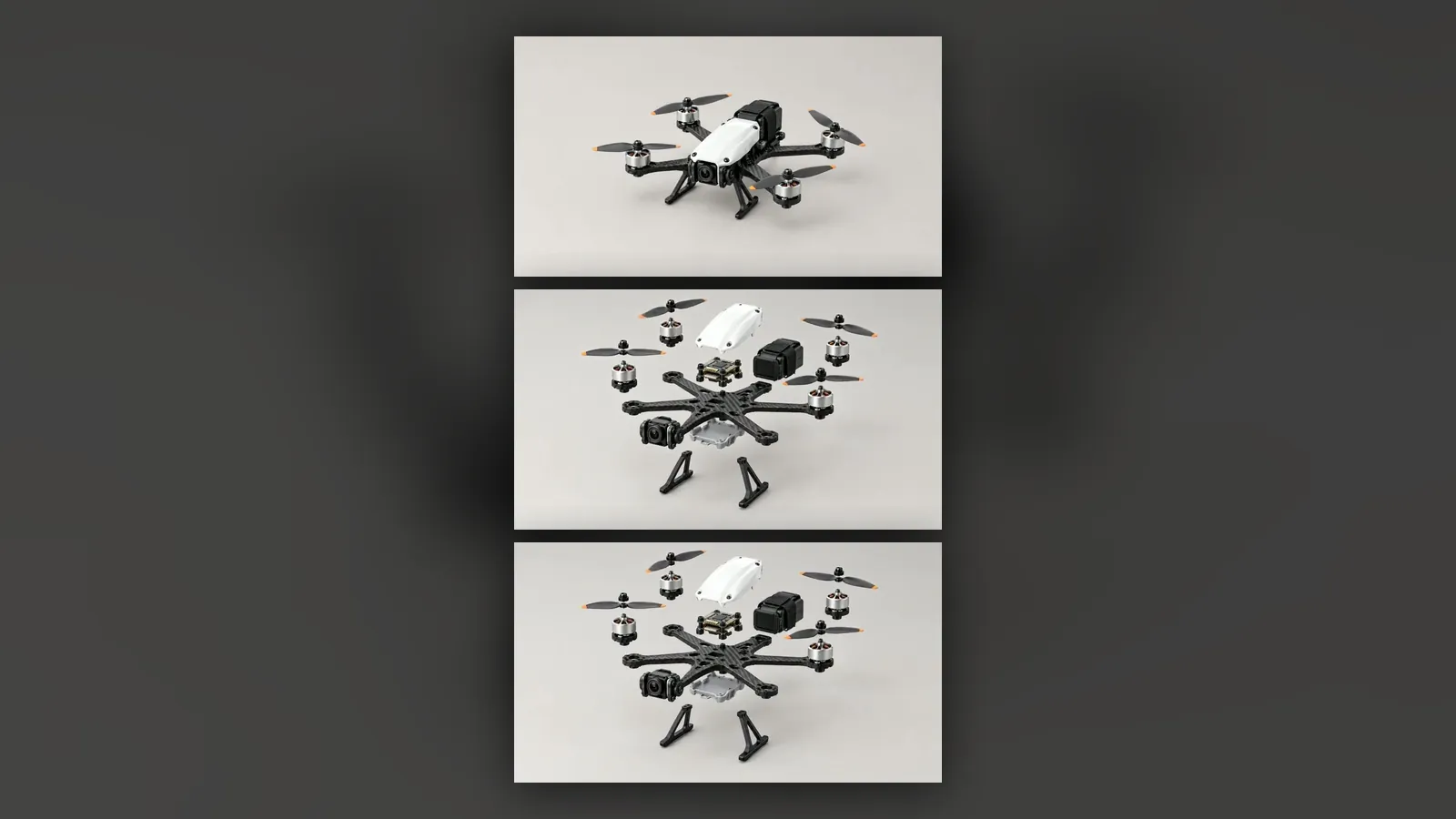
A scroll-driven product page is a single-page site where a product video or animation plays forward as the visitor scrolls down and backward as they scroll up. The most common method splits the video into individual frames and draws the right frame onto a canvas element according to the scroll position.
This article covers where the technique came from, three ways to implement it, the rules for performance and accessibility, the common mistakes, and how Yeşilçam Studios builds this kind of page from an assembly video.
What is a scroll-driven product page?
On a classic product page a video starts with a play button and runs at its own pace. On a scroll-driven page the visitor controls time: the scroll bar is tied to the video's timeline. When the visitor stops, the image stops; when they scroll back, the product rewinds. That sense of control invites them to study the product's parts, layers or rotation.
The technique spread in the late 2010s through the launch pages of large technology brands. Pages where earbuds came apart or a phone turned as you scrolled quickly became a recognisable language of product marketing. Today the same approach is used on the landing pages of small brands too.
Which methods can you use for scroll-driven animation?
| Method | How it works | Strength | Weakness |
|---|---|---|---|
| Image sequence and canvas | The video is split into frames; the matching frame is drawn to a canvas based on scroll progress | Frame-accurate and consistent in every browser | Many files to download |
| Video seeking | The playback position of a single video file follows the scroll | One file, small size | Stutters when scrubbing backwards; not smooth unless encoded with frequent keyframes |
| CSS scroll timelines | CSS animations are tied directly to the scroll position | No JavaScript needed, smooth | Animates CSS properties, not video frames; browser support is uneven |
For playing a product video, the image sequence is the most robust option. CSS scroll timelines suit accompanying motion such as headlines, text and card transitions; in browsers without support the page must keep working in a plain form.
What are the components of a scroll-driven page?
Sticky stage
The area where the animation plays stays fixed on screen while the visitor scrolls through a long section. The height of that section sets the animation's "duration": a taller section means slower playback.
Frame sequence
The video is split into compressed images at a resolution that fits the screen. Modern formats such as WebP cut file size noticeably. Serving a smaller sequence to mobile devices reduces the load further.
Text layer
Headline, features, story and contact sections are written as real HTML text. That way search engines read the content, screen readers announce it and visitors can select it.
Fallback view
Before the frame sequence loads, the first frame is shown as a poster image so the visitor never sees an empty area.
How do you build a scroll-driven product page step by step?
- Prepare the source animation. Choose a 5 to 20 second video with one clear story, such as an assembly, a product turn or an opening motion.
- Split the video into frames. Between 24 and 30 frames per second is enough in most cases; very long videos inflate the file count for no gain.
- Compress the frames and prepare them in two sizes (desktop and mobile).
- Build the page skeleton: a sticky canvas, a long scroll section around it, and the text sections.
- Convert scroll progress into a frame number and draw inside requestAnimationFrame; do not draw directly on every scroll event.
- Preload frames in order: first the opening frame and a few in-between frames, then the rest. When the visitor reaches a frame that has not loaded yet, show the nearest loaded one.
- Respect the reduced motion preference, test on mobile and measure page speed.
How many frames do you need and how heavy will the page be?
A simple calculation makes planning easier. A 10-second video at 24 frames per second is 240 frames. If each compressed frame averages 60 KB, about 14 MB is downloaded in total; left uncompressed, the same frames weigh many times more. There are three ways to cut the weight:
- Fewer frames: in an animation played by scrolling, 12 to 15 frames per second often looks smooth, because the visitor sets the speed.
- Resolution matched to the screen: never send desktop-sized frames to a mobile device.
- Progressive loading: download widely spaced frames first, then the ones in between; the animation works early in a rough form and becomes smoother as loading continues.
The height of the scroll section shapes the experience too. As a rule of thumb, allowing one to two screen heights of scrolling for each second of animation gives a pace at which visitors can follow the motion comfortably.
What should you watch for in performance and accessibility?
The biggest risk of a scroll-driven page is weight. If hundreds of frames are downloaded at high resolution, the page opens slowly and eats mobile data. Keep frames at the resolution the screen can actually show, load the first frame fast and bring the rest in gradually.
On accessibility, the basic rule is to respect the operating system's reduce motion setting. The prefers-reduced-motion query in CSS reports that preference; when it is on, show a still frame or a short image series instead of the animation. For people with motion sensitivity, large-scale motion can cause dizziness.
- Do not hijack scrolling: code that changes scroll speed or forcibly snaps the page into sections wears users out.
- Do not put information only inside the animation; every important message should also exist as text.
- Provide keyboard navigation, visible focus and sufficient text contrast.
- Give the canvas a meaningful description or mark it as decorative.
What are the most common mistakes?
- Playing the video by direct seeking and ending up with an image that stutters when scrolling back.
- Leaving frames at full resolution and making the page megabytes heavier.
- Making the scroll section too short: the animation flashes past and the visitor sees nothing.
- Baking text into the images: search engines and screen readers cannot read it.
- Not testing on mobile: on a vertical screen the product can slip out of frame.
When is a scroll-driven page the wrong choice?
Not every product benefits from a scroll-driven page. A classic product page may work better in these cases:
- When visitors want to reach price and stock information quickly, for example in a catalogue with many products.
- When the product has no visual story; for simple single-piece products, a scroll animation only adds waiting.
- When much of the audience arrives on slow connections.
How do you measure whether a scroll-driven page works?
Looking impressive is not success on its own. Tracking these measures after launch shows whether the page actually works:
- Scroll depth: what share of visitors reach the end of the animation.
- Call-to-action clicks: the share who click the button that follows the animation.
- Load time of the first visible content: how quickly the poster frame appears.
- Mobile versus desktop: the same page can behave differently on the two groups of devices.
How do you make a scroll-driven product page in Yeşilçam Studios?
Website Studio turns an Assemble / Disassemble video made in Film Studio into a single-page product site that plays frame by frame as visitors scroll. Once you have made the video with an assembly / disassembly animation, press "Create a website from this video" on the finished video.
- Choose the source video. If you like, add another Assemble video or an image as a second scene.
- Write the brand name, product name, main headline and copy; every field is optional, and Sam fills anything you leave empty with sample copy that suits your product.
- Optionally enter your website address; your home page and one inner page are read to take the brand name, colours, logo and copy.
- Choose the menu sections (Features, Story, Gallery, FAQ, Contact), the theme colour, the site language and the background. If you choose Ink landscape as the background, it stays still on devices with reduced motion turned on.
- For the gallery, use video frames only (free) or generate up to 8 images.
- Press "Create the site with Sam".
When the site is ready you can set its visibility to "Only you" or "Public", share the preview link or download the site as a ZIP. Editing the copy and theme later and repackaging is free. At the Basic list price a site build is 8,751 tokens ($0.05) and each generated image 8,751 tokens ($0.05); copywriting is shown separately in the quote, and the Free plan applies ×1.3 and the Pro plan ×0.8. Details are in the Website Studio guide and the publishing guide, current prices on the pricing page.
Frequently asked
Does a scroll-driven page hurt SEO? Not as long as the text is real HTML and the page loads quickly. Problems arise when the content lives only inside images and the page gets heavy.
Should I use a video or an image sequence? For scroll-linked playback an image sequence is more consistent; a video file is smaller but can stutter when scrubbing backwards. For background videos that simply play, a video file is enough.
What is prefers-reduced-motion? It is a CSS media query that tells a web page the user has asked their operating system to reduce motion. When it is on, large animations are expected to stop or be simplified.
Do scroll-driven pages work on mobile? Yes, but the frames should be sized for mobile screens and the product's visibility in a vertical frame should be tested.
Can Website Studio build a site from scratch, without a video? As of October 2026 sites are created from an Assemble / Disassemble video. Building a site from a description alone is announced in the app as coming soon.