
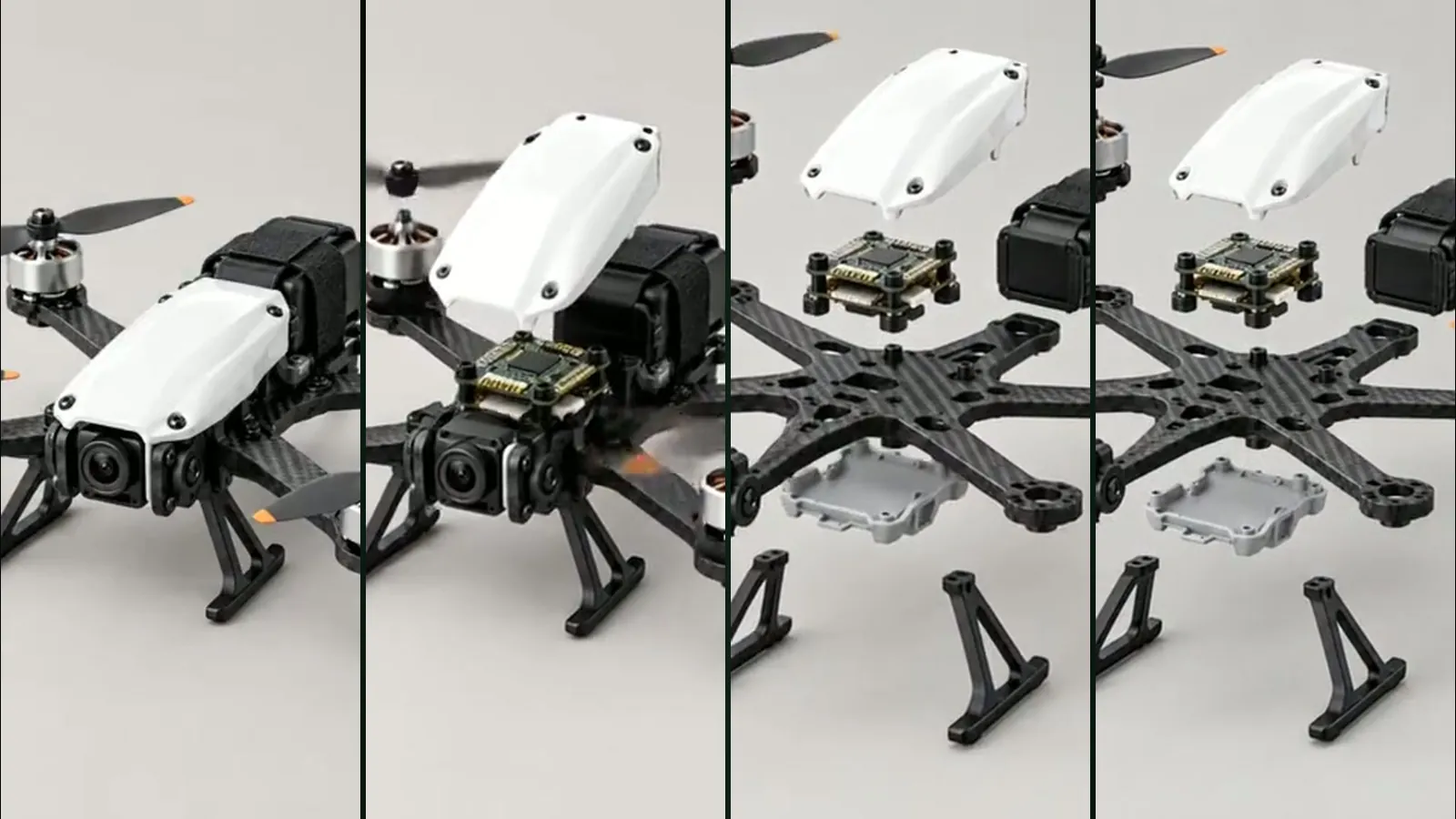
Assemble / Disassemble is a video template in Film Studio: you give it a product photo or a short description, and in the video your product comes apart piece by piece or snaps together from its parts. You choose the flow, the camera, the length and the quality; the price is shown in tokens before anything is generated.
Exploded-view videos like these work well for product launches and technical showcases, but they normally take 3D modelling and animation skills. We wanted them to start from a single photo. All the settings are covered in the Assemble / Disassemble guide; here is a short introduction and a few tips.
Why start from one photo?
A small brand rarely has a 3D model of its product, but it almost always has a decent product photo. Assemble / Disassemble first plans the scene, then prepares the start, end and, when needed, in-between frames, and finally links those frames into a video. That keeps the product the same from frame to frame. We look at where this kind of storytelling comes from in our exploded-view article.
The options in brief
- Flow: Whole to parts, Parts to whole, Take apart and rebuild, Build and take apart. The reverse direction needs no extra generation and is not charged.
- Camera: Locked, 180° orbit or 360° orbit. With an orbit each section lasts 10 seconds; a 360° orbit needs at least 20 seconds of generation.
- Length and aspect: Between 5 and 60 seconds, limited to the lengths that fit your flow and camera; 16:9, 9:16 or 1:1.
- Quality: Standard (720p), Pro (1080p) and 4K (2160p). 4K is for subscribers only.
Tips for a better result
- Pick a sharp photo that shows the whole product. Products held in a hand or busy scenes can spoil the result.
- If you want your own shot to appear, switch on “Use my photo as it is”. Your photo becomes a frame of the video without any change; the short side has to be at least 700 pixels.
- If your photo is dark or blurry, try “Enhance the image with Sam”: with a Studio, Lifestyle or Photo setting background it creates a new image while keeping the product exactly as it is. Details are in the product photo guide.
- Add short notes such as “dark grey background” in “Extra direction”; anything you don’t want can go in the “Avoid” field.
- Start with a 5-second Standard test. For videos up to 8 seconds, if you are not happy with the result you can regenerate once for free with the same keyframes.
How much does it cost?
At the Basic list price one second of video is 24,501 tokens on Standard, 32,667 on Pro and 122,501 on 4K. The start and end frames are 29,167 tokens; when you use your photo as it is, that line drops to 16,334 tokens. So a 5-second Standard video comes to about 151,672 tokens ($0.91) on top of a small planning share. The Free plan applies ×1.3 and Pro ×0.8; if the video cannot be generated, the tokens are refunded. Current prices are on the pricing page.
To take a finished video one step further, “Create a website from this video” leads you into Website Studio. The Film Studio overview is on the Film Studio page.
Frequently asked
What if I don’t have a product photo? Choose “Description” as the source and describe the product in a few sentences; the product is drawn from your description.
Does the free regeneration apply to every video? No. It applies once, to videos up to 8 seconds. For longer videos, or after you have used it, a regeneration charges only the video.
Can I use 4K on the free plan? No, 4K is available only to Basic and Pro subscribers.
How long does a video take? It can take a few minutes. You may leave the page; the video is also saved to your library.