
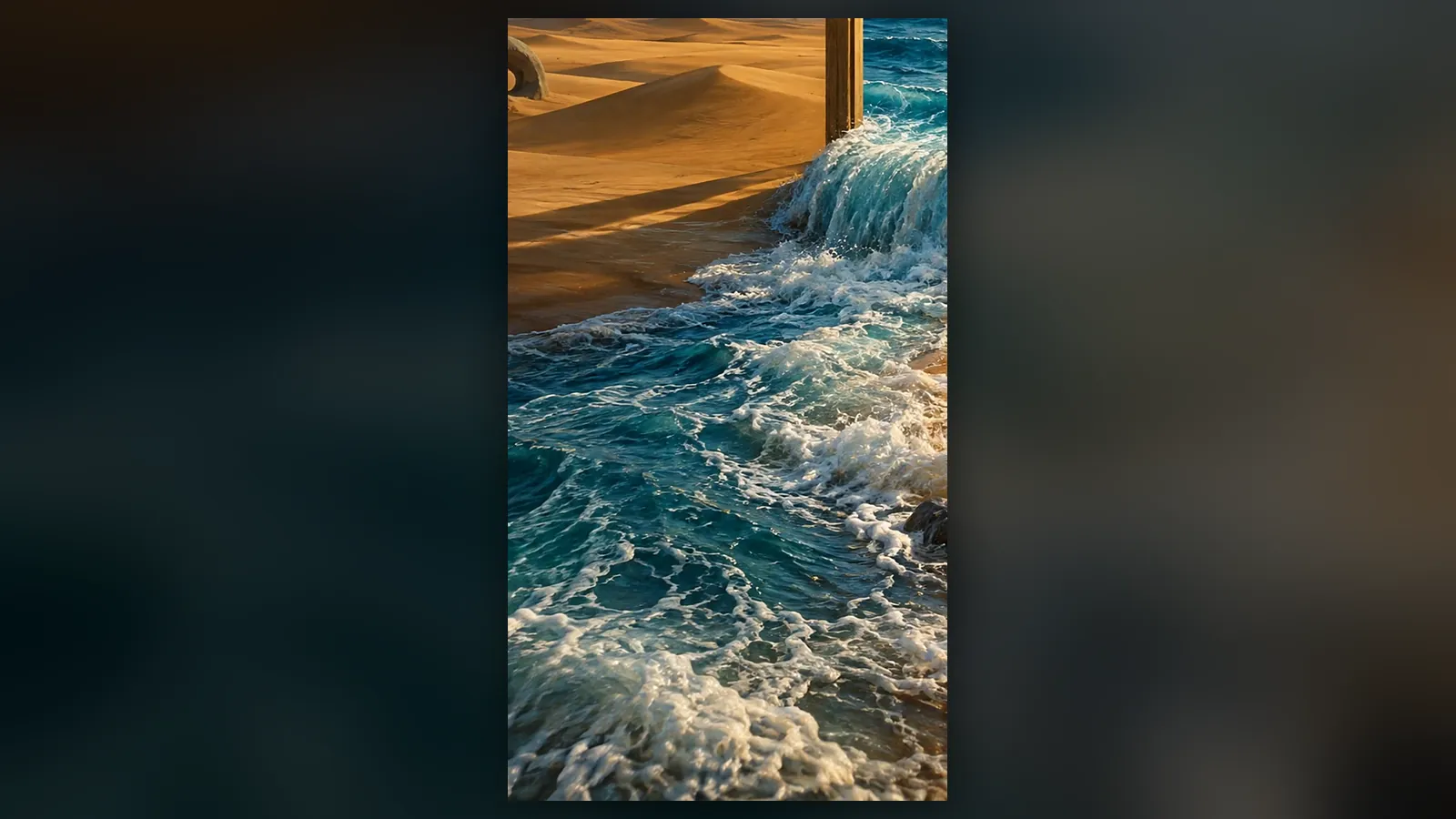
Custom is the part of Animation Studio where you bring your own image to life: you upload an image or pick one from your library, draw the path the camera should follow on top of it, mark the objects that should move with arrows, and get a 5, 10 or 15 second video in 16:9, 9:16 or 1:1.
Custom is open at /app/animation/custom. Every detail of the camera tool is in the Custom guide; this post explains why we built it and what we suggest for your first try.
Why draw the camera?
When you turn an image into video, describing the camera in words alone is hard. You write “slowly turn right, then move in” and sometimes get the opposite. When you draw the camera on the image, your intent becomes a plan: the start and end framing, the type of move, zoom and roll all show on screen. Paths with turns are split into parts and joined into one video.
Knowing the names of camera moves makes this easier; our camera movement glossary explains pan, tilt, dolly and orbit with examples.
How do you make your first video?
- Pick an image: JPG, PNG or WebP, up to 20 MB.
- In “Motion”, describe what happens in the scene. If you are unsure, “Write with Sam” or “Improve with Sam” writes the prompt in English, which gives the best video results.
- Draw the path with the “Camera path” tool; “Rotate” turns the camera in place, “Slide” moves it sideways or up for a sense of depth.
- With the “Object motion” tool, draw up to three arrows; if you like, name each object.
- Choose the length, aspect and quality, then press “Create video”.
Tips
- Start with a simple path: A short path in one direction gives the most predictable result. Save turns for the second try.
- You don’t have to draw: If you don’t draw, Sam picks the camera. Describing the motion in the scene is enough.
- Test with Draft: Draft is 720p, fast and economical; regenerate the path you like on Standard (1080p).
- Come in from other studios: “Turn into animation” on an image in Image Studio or a design in Design Studio takes you straight to Custom.
When the video is ready, its link to the source image is kept; you can see what you made from which image as described in our source lineage post.
How much does it cost?
At the Basic list price one second of Custom is 24,501 tokens ($0.15) on Draft and 32,667 tokens ($0.20) on Standard. A 5-second Standard video is 163,335 tokens ($0.98); on Pro, ×0.8 brings it to about 130,668 tokens, and the Free plan applies ×1.3. If the video cannot be produced, the full amount is refunded to your balance. Current prices are on the pricing page, and all styles on the Animation page.
Frequently asked
Which aspect ratios does Custom support? 16:9, 9:16 and 1:1. The start and end framing for the ratio you pick is shown on top of the image.
How many objects can I move separately? You can draw arrows for up to three objects. The tip of each arrow shows where the object should go.
Why does Sam write the prompt in English? English prompts give the best results in video generation, so Sam writes in English. You can describe the scene in your own language.
How many videos can I make at once? Up to two videos at the same time. Wait for one to finish before starting another.