
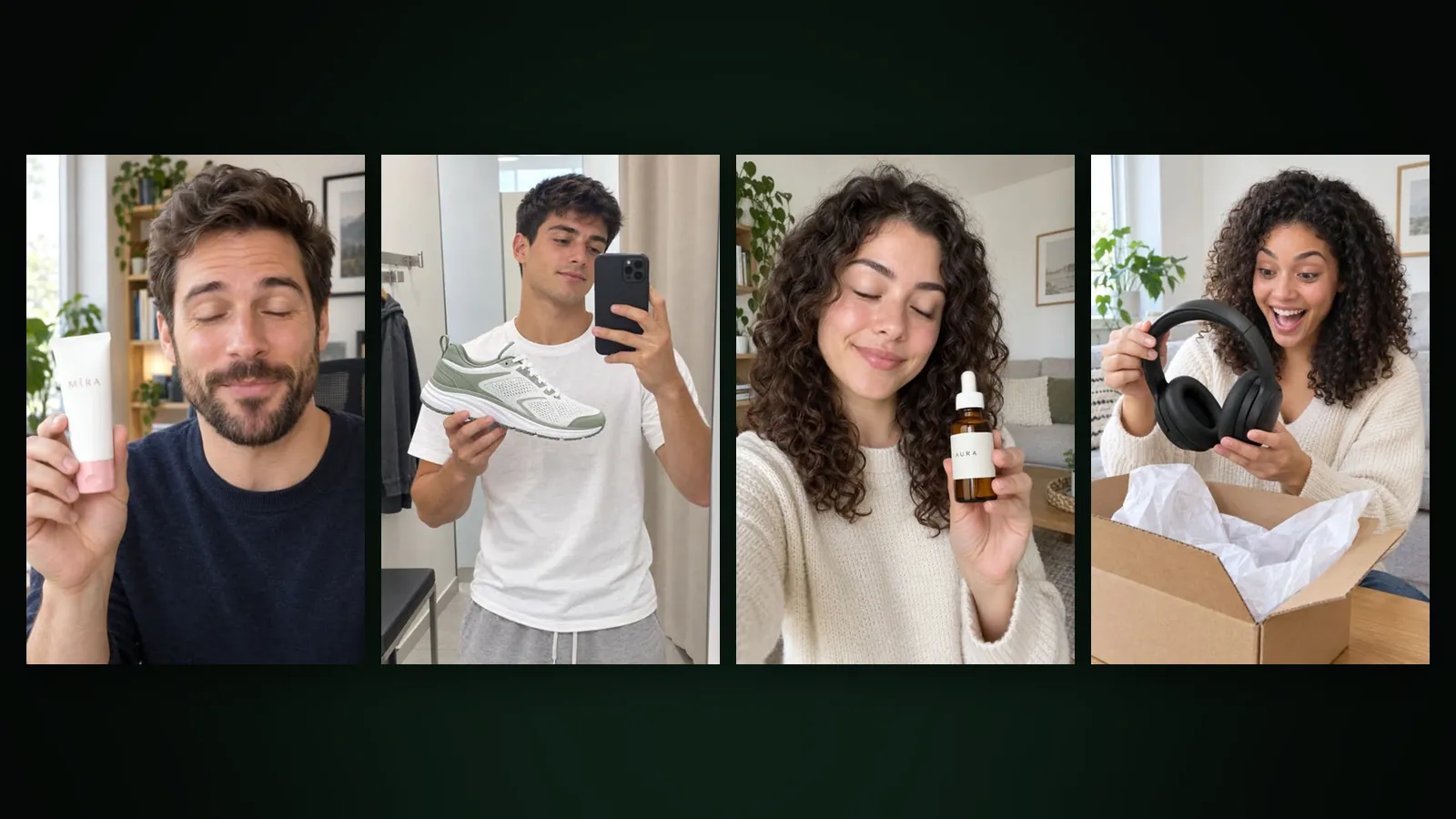
A character video is a short clip in which the characters you saved in Film Studio appear with their own faces, hair and outfits. You pick up to four characters, write what happens, choose a quality tier and a length, and the video is generated directly from your characters' images. If you want to see the scene before paying for the video, switch on "Approve the first frame first".
Where do you make one?
Characters live under Film Studio › Characters at /app/studio/characters; create a New Character with a name and reference images. Then open Film Studio › Create at /app/studio, choose the Custom tab and select characters in the character picker. As soon as at least one character is selected, the form switches to character video: the quality tiers change and the first-frame option appears.
How do you write the scene?
- Select up to four characters.
- Name the characters in your prompt, for example "Mina and Sam sit at a café table and laugh", so it is clear who does what.
- Describe one action and one setting. A five-second clip holds one beat; keep the story for a longer film.
- Optionally use the Avoid field for things you do not want, such as text or extra people.
- Pick the tier and the length, check the cost, and generate.
Consistency across clips depends on good references. The background is in character consistency in generative video, and for a full film the character bible goes further.
Draft, Standard or Premium: which tier?
| Tier | Best for | Who can use it |
|---|---|---|
| Draft | Trying ideas quickly at lower cost | All plans |
| Standard | Finished clips with sharper detail | All plans |
| Premium | The liveliest motion for stylised characters and mascots | Subscribers (Basic or Pro) |
Premium is made for stylised characters. For realistic human characters, the video is automatically made with the Standard method and the price difference is refunded; the queue shows the note "The best method for this character was used; the price difference was refunded."
Every tier offers 5 or 10 seconds. Live list prices (Basic plan, ×1.0):
| Tier | 5 s | 10 s |
|---|---|---|
| Draft | 122,501 tokens (about $0.74) | 245,001 tokens (about $1.47) |
| Standard | 163,334 tokens (about $0.98) | 326,668 tokens (about $1.96) |
| Premium | 177,917 tokens (about $1.07) | 355,834 tokens (about $2.14) |
Free pays ×1.3, Pro ×0.8. If generation fails, your tokens are refunded. Current prices are on the pricing page.
How does "Approve the first frame first" work?
With this option on (Draft and Standard only), the first frame of the scene is prepared before any video is made. Both prices, the first frame and the video, are shown in the quote and charged at the start. The job then waits in the queue with the card "First frame ready, awaiting your approval", where you have three choices:
- Approve and start video: the frame becomes the start of the clip and the video is generated.
- Regenerate first frame: a new frame is made; this costs the first-frame price again.
- Cancel: the video is cancelled and all tokens except the first frame are refunded at once.
If you do nothing for 24 hours, the video is cancelled automatically and the video price is refunded. The first-frame price is not refunded in these cases, because the frame was made.
Use the option when a scene is expensive to get wrong: several characters, a precise setting, or a 10-second Standard clip. For quick tests, generating directly is faster. The idea is also explained in why you should approve the first frame.
Why is my prompt too long?
For character videos the prompt can be at most 2,200 characters. A counter under the field warns you as you get close. If you go over, the app offers "Shorten with Sam", which rewrites the prompt within the limit while keeping the characters and the action. The limit is checked before payment, so a prompt that is too long is never charged.
How do you get a better likeness?
- Give each character clear reference images with the face well lit and visible from the front.
- Keep one look per character: if the references show different outfits or hairstyles, the clip may mix them.
- Describe the setting and the action, not the characters' appearance again; the references already carry the look.
- Ask for one camera move at most, such as a slow push in, and keep the characters close enough to the camera for their faces to read.
- For a scene that has to be right, switch on "Approve the first frame first" and check faces and outfits on the still before the video is made.
What should you expect from the result?
- Faces, hair and outfits follow the reference images; better references give better likeness.
- Two or three characters work best; four in one five-second shot can feel crowded.
- Generated videos land in your library and can be used in films or further edits.
Frequently asked
How many characters can I put in one video? Up to four. Name them in the prompt so it is clear who does what.
Can I use Premium on the Free plan? No. Premium is available with a Basic or Pro subscription; Draft and Standard are open to all plans.
What happens if I reject the first frame? The video is cancelled and all tokens except the first-frame price are refunded immediately.
Is "Approve the first frame first" available for Premium? No. It works with Draft and Standard only.
What if I forget to approve? After 24 hours without approval, the video is cancelled and the video price is refunded automatically.