
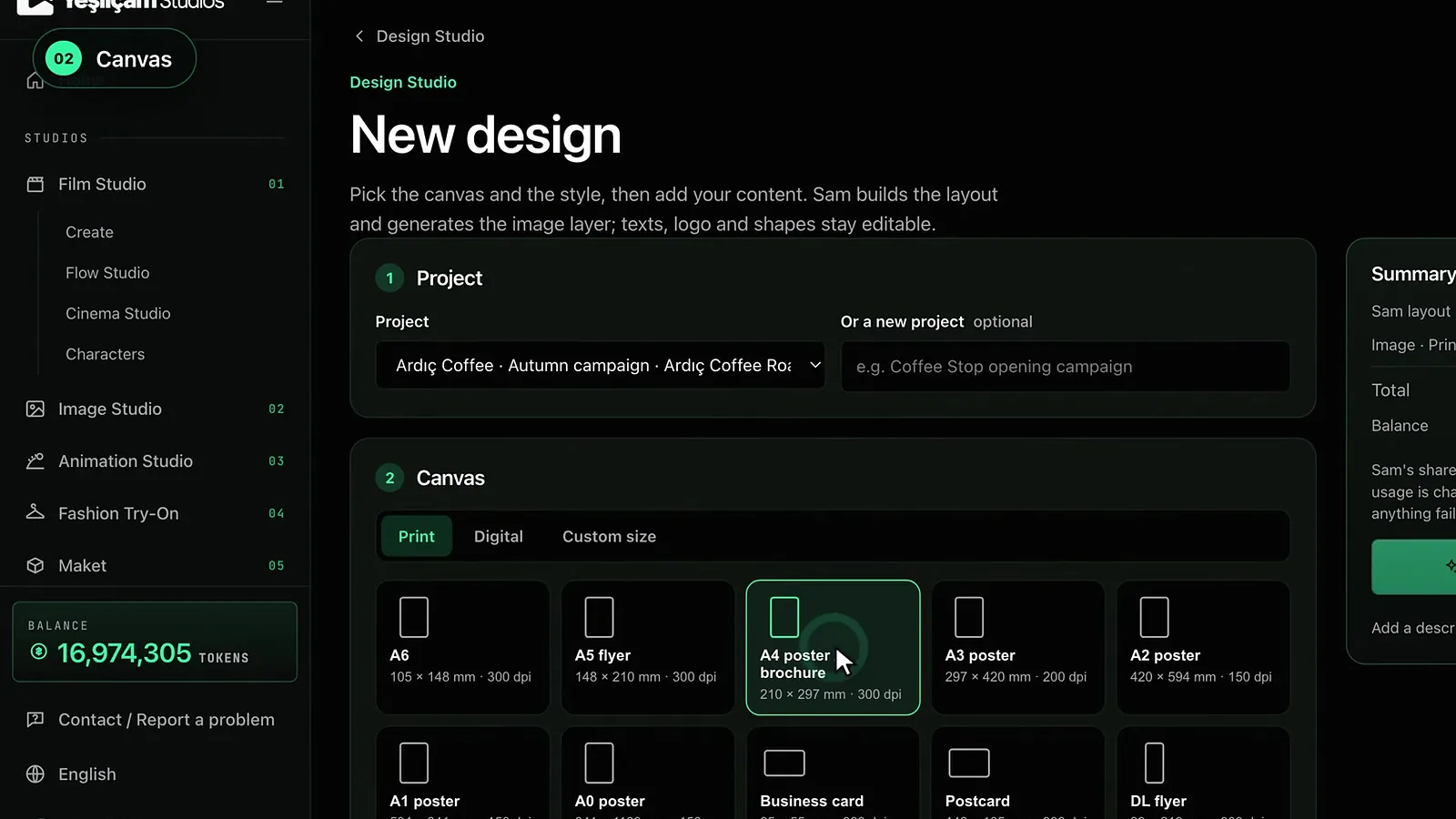
To make your first design in Design Studio, open a project at /app/design, press New design, pick the canvas size and the style, add your description, images and texts, then press Design with Sam. Sam builds the layout and generates the image layer; texts, logo and shapes stay editable layers.
This guide covers Design Studio’s project structure, print and digital canvas sizes, image qualities and the steps of a first design, as of October 2026.
What is Design Studio?
Design Studio is the studio for print-ready and digital designs such as posters, business cards, brochures, menus, roll-ups and social media posts. You give the brief, Sam builds the layout and you add the finishing touches in the editor. You export PNG or JPG, and from the Basic plan CMYK PDF/X, SVG and EPS. For an overview and samples, see the Design Studio page.
Why is a project like a client folder?
Every design in Design Studio lives inside a project. A project is like a folder opened for one client or job: it keeps a campaign’s poster, business card and social media visuals together. When you create a project you fill in the Project name field; Client and Note are optional. In the note you can keep brand colours, the contact person or the due date.
The project card shows how many designs it holds. You can duplicate a design with Copy to make variations, or move it to another project with Move. Deleting a project also removes all its designs and cannot be undone, which is why the confirmation shows the number of designs. If you open a new design while you have no projects, a project called My designs is created for you.
How do you choose the canvas size?
The Canvas step of the new design form has three groups: Print, Digital and Custom size. With the ready-made sizes you can work in portrait or landscape using the Orientation option.
| Group | Ready-made sizes | Resolution |
|---|---|---|
| Print, A series | A6, A5 flyer, A4 poster / brochure, A3, A2, A1 and A0 poster | A6–A4 300 dpi, A3 200 dpi, A2–A0 150 dpi |
| Print, small items | Business card 85 × 55 mm, postcard, DL flyer, brochure (A4 landscape), invitation, menu (A4), sticker | 300 dpi |
| Print, large format | Poster 50 × 70, poster 70 × 100, roll-up 85 × 200, banner 3 × 2 m | 72–150 dpi |
| Digital | Instagram post and square, Story / Reels, Facebook cover, YouTube channel art and thumbnail, X and LinkedIn post, web banner, 16:9 presentation, Pinterest, email header | Set in pixels |
| Custom size | Print in mm, cm or inches with a dpi of your choice; digital in pixels | 20 mm – 6 m for print, 64 – 10,000 px for digital |
Print sizes get a 3 mm bleed automatically, and the form shows the print resolution in pixels. A low dpi is normal for large formats, as they are viewed from a distance.
Choosing a style
In the Style step you can pick one of 21 design styles, or tick Free and leave the style to Sam. The looks of the styles and the jobs they suit are in the 21 design styles guide.
How do you give the content?
- Description. Write in a few sentences what you are designing and its mood, e.g. “A4 poster for our coffee shop opening on 1 November; warm and inviting; first coffee free.”
- Brand name. Optional; Sam takes it into account in the layout and the colour palette.
- Images. Add your logo, product photos or images from your library and give each one its own instruction. Details are in the images and products guide.
- Texts. Add text with the roles Headline, Subheading, Body text, Call to action and Details (date, address). Texts are used word for word and become editable layers; they are not painted into the image.
- Avoid. An optional field where you list, separated by commas, what you do not want in the design.
Design with Sam becomes available once you add at least one of a description, an image or a text.
Image quality: Draft, Print 4K, Premium 4K
| Quality | List price (Basic) | When to use it |
|---|---|---|
| Draft | 11,376 tokens (about $0.07) | Fast, affordable try-out; upgrade to 4K later |
| Print 4K | 44,042 tokens (about $0.26) | Print-ready 4K image; direct up to A3, scaled for larger sizes |
| Premium 4K | 71,167 tokens (about $0.43) | Cleanest edges and text harmony |
The Summary section of the form shows the Sam layout (estimate) and Image lines, the total and your balance. Sam’s share is an estimate; only actual usage is charged and the rest is refunded. If anything fails, everything is refunded. List prices are for Basic; the Free plan applies ×1.3 and Pro ×0.8. Current prices are on the pricing page.
Design with Sam: your first design step by step
- At /app/design, press New project and enter the project name and, if you like, client details.
- Inside the project, press New design.
- In the Canvas step, choose the size and orientation.
- In the Style step, choose a style or leave it on Free.
- In the Content step, enter the description, brand name, images and texts.
- Choose the image quality, check the summary and press Design with Sam.
Preparation can take a minute or two; stages such as Sam is building the layout, Generating the image layer and Combining layers appear on screen. You can leave the page; the design will be ready in the project. At most two designs can be prepared at the same time.
Next steps
When the design is ready, the editor opens. You adjust text, images and colours there; see the editor and legibility guide. Changes are saved automatically and every save updates the design’s version; if the design changed in another tab, the latest version is loaded. Before sending anything to print, read the print preparation guide.
Frequently asked
Can I use Design Studio on the Free plan? Yes, you can create designs and download them as PNG, JPG and WEBP. Downloads with a long edge above 720 pixels carry a watermark; PDF, SVG, EPS and CMYK open from the Basic plan.
Can I start in Draft and move to 4K later? Yes. The Upgrade to 4K button in the editor keeps the same composition and upgrades only the image layer.
Can I design without picking a style? Yes. With the Free option, Sam chooses the style.
Are my texts painted into the image? No. Texts stay separate layers; you can change their font, size and colour in the editor.
What if the design cannot be created? The tokens spent are refunded, and buttons appear to try again with the same content in Draft or Print 4K.