
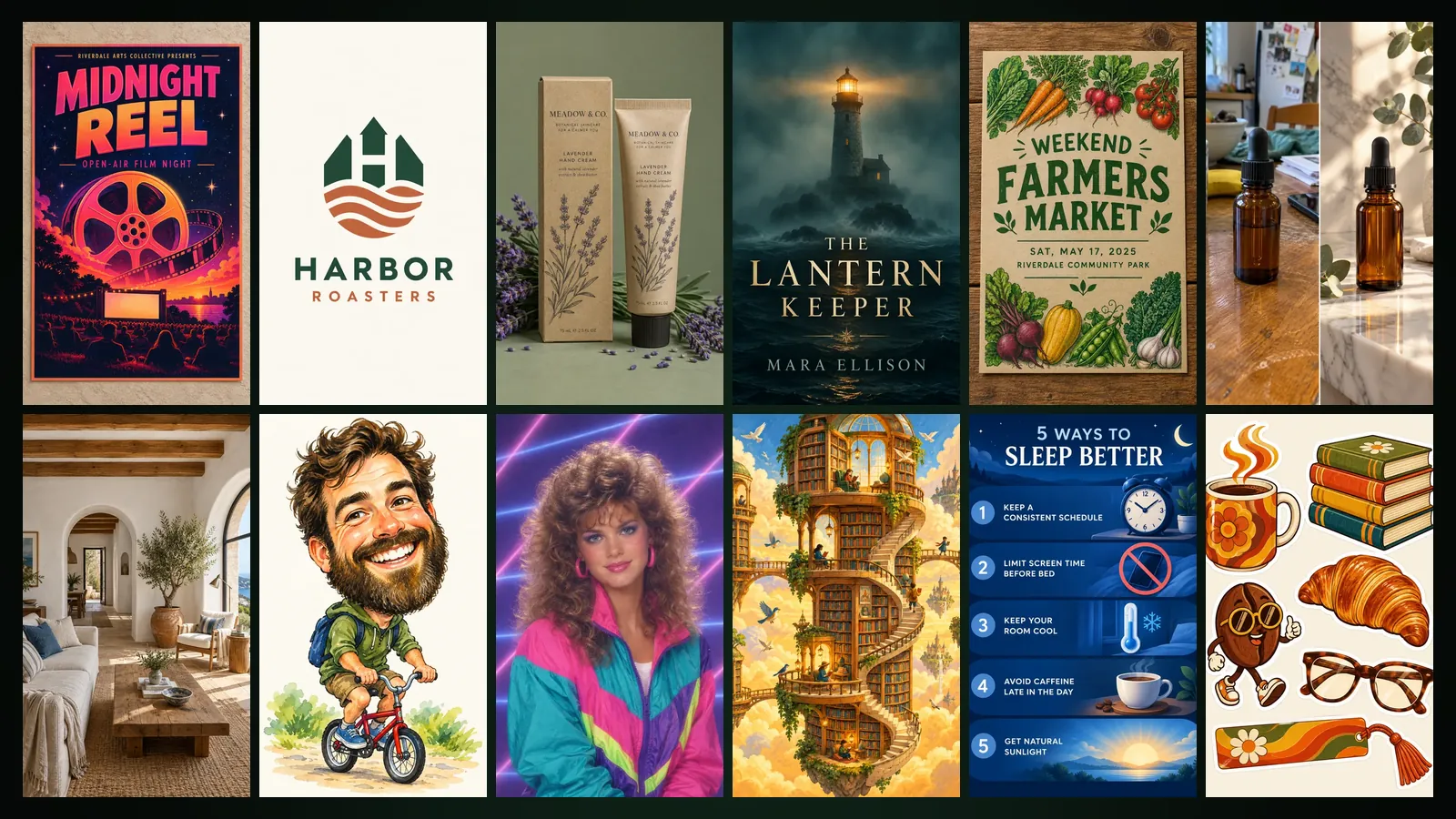
To create an image in Image Studio, open /app/image, pick one of 65 templates in 7 categories, fill in the short form, choose a quality and press Generate. If you would rather not use a template, you can describe the image in your own words, edit an existing image in one sentence or put your own characters into a scene.
This guide covers Image Studio’s four tabs, the template categories, the difference between Draft, Standard and Cinema quality, how reference images are charged and what you can do with a finished image, as of October 2026.
What is Image Studio and where do you find it?
Image Studio is the image studio of Yeşilçam Studios: posters, logos, product photos, portraits, illustrations and infographics, any single-frame work, are made here. In the app it lives at /app/image; for an overview and samples see the Image Studio page. Every image you create lands in your library and can be passed on to the other studios from there.
Four tabs: Templates, Create, Edit, With characters
- Templates. Pick a category, then a template. Each template has a short form of a few fields; the Generate button stays off until the required fields are filled, and the reason is shown under the button.
- Create. The tab where you describe the image freely. The description needs at least 3 characters. If you want text in the image, put it in quotes; it is rendered exactly as written.
- Edit. Choose an image from your library or your computer, pick what should change and write a one-sentence instruction.
- With characters. Pick up to four of your saved characters and describe a scene; each character keeps their face, outfit and art style.
7 categories and 65 templates
Templates are grouped into seven categories. Clicking a category shows only its templates; All templates lists every one of them together.
| Category | Templates | Examples |
|---|---|---|
| Design & Brand | 11 | Poster, Logo, Icon Set, Packaging, Book Cover, Flyer, Advertisement, Thumbnail, Website Mockup |
| Product & Space | 5 | Product Photo, Merch Mockup, Interior Design, Desk Setup, Landscape |
| Portrait (from your photo) | 9 | Studio Headshot, 3D Avatar, Caricature, Anime Portrait, Mini Me, Action Figure |
| Illustration & Art | 9 | Illustration, Pencil Sketch, Sticker Sheet, Comic Strip, Tarot Card, Pixel Art |
| Infographics & Explainers | 5 | Infographic, Cross-Section, Animal Infographic, Illustrated Recipe, Research Visual |
| Photo Fix & Enhance | 5 | Fix Lighting, Enhance Photo, Night Flash, Colorize, Background Swap |
| Design Styles | 21 | Minimalism, Pop Art, Swiss Design, Ink Wash Painting and more |
Templates with a Your photo label on their card work from your own photo: all portrait templates, all Photo Fix & Enhance templates and Product Photo. These templates open a photo slot above the form; pick a photo from your library or upload one. For the Design Styles category in detail, see the 21 design styles guide.
How do you create an image from a template?
- On the Templates tab, pick a category and click a template card.
- If the template needs a photo, add yours.
- Fill in the form. A poster has fields such as title, subtitle and theme; a logo has brand name, industry and style. Optional fields can stay empty.
- Choose the aspect ratio and quality in the right-hand column. When a template opens, its natural ratio (for example 3:4 for a poster) is preselected; you can change it.
- Press Generate. The job appears in the job list at the bottom of the page and the result card opens when it is done.
You are not bound to the quality and ratio a template preselects. To try a different template, use the Back to templates link above the form.
How do you choose quality and ratio?
| Quality | List price (Basic) | When to use it |
|---|---|---|
| Draft | 4,376 tokens (3 free each month) | Trying ideas, exploring a composition |
| Standard | 16,042 tokens | Work you will share or publish |
| Cinema | 32,084 tokens | Highest resolution and detail |
List prices are for the Basic plan; the Free plan applies ×1.3 and the Pro plan ×0.8. In US dollars that is roughly $0.03 for Draft, $0.10 for Standard and $0.19 for Cinema at the Basic rate. Cinema quality is included in Basic and Pro subscriptions; without one, its card shows a BASIC badge. Current prices are on the pricing page. Aspect ratios are 1:1, 16:9, 9:16, 3:4 and 4:3.
How do you edit an image in one sentence?
On the Edit tab, first choose the image to edit, then pick a mode under What should change? and write a short sentence in the Instruction box. The instruction needs at least 3 characters. The Edit button on a library item or a result card brings you to this tab with the image already in place.
- Anything. Any kind of change, e.g. “add a cup of Turkish coffee on the table”.
- Background. The subject stays, the background changes, e.g. “the Bosphorus shore at sunset”.
- Colour. Changes the colour of an object, e.g. “make the jacket navy blue”.
- Pose. Changes how the person stands, e.g. “arms crossed, looking at the camera”.
Adding characters and reference images
On the With characters tab you pick from your saved characters; if you have none yet, you can create a character from images in your library. Using the characters’ names in the scene description makes the result clearer. The source image you edit, every character you pick and any photo you add to a template each count as a reference image. Each reference adds 2,626 tokens (Basic list price, about $0.02), already included in the price shown on the quality cards; a note such as “Price includes 2 reference image(s)” appears underneath. A job can use at most 4 references.
The Avoid field and Improve with Sam
Every tab has an optional Avoid field at the bottom. List what you do not want to see in the result, separated by commas: text, watermark, blur, a cluttered background and so on. Leave it empty and it is ignored. See the Avoid field guide for details.
The Create tab and the Subject field of the design style templates have an Improve with Sam button. If the box has text, Sam enriches it; if it is empty, the button becomes Write with Sam and suggests an original subject. An estimated token cost is shown next to the button, and only actual usage is charged. If you do not like the result, Undo brings back your earlier text.
What can you do with the result?
- Edit. Moves the image to the Edit tab so you can continue with a new instruction.
- Use in Design Studio. Sends the image to Design Studio’s new design form, ready to become a poster, a business card or a social post. See Getting started with Design Studio.
- Turn into animation. Sends the image to the Custom section of Animation Studio, where it becomes a short video along a camera path you draw. See the Custom guide.
- Library. Every result is kept in your library; the From your library option in Design Studio opens the same library.
Frequently asked
Can I create images for free in Image Studio? Three Draft images are free every month. After that, and for the other qualities, you pay in tokens; you can also use the 250,000 tokens the Free plan gives once at sign-up.
Do images carry a watermark on the Free plan? Yes. Free plan outputs carry a watermark; Basic and Pro plans do not.
How do I get text in the image right? Put the text in quotes and keep it short. It is meant to be rendered letter for letter, accents included; a headline and short lines work better than long paragraphs.
What happens to my tokens if a job fails? The cost of failed jobs is refunded to your balance automatically.
How many characters can I put in one scene? Up to four. Each character counts as a reference image, and the extra tokens per reference are included in the price.