
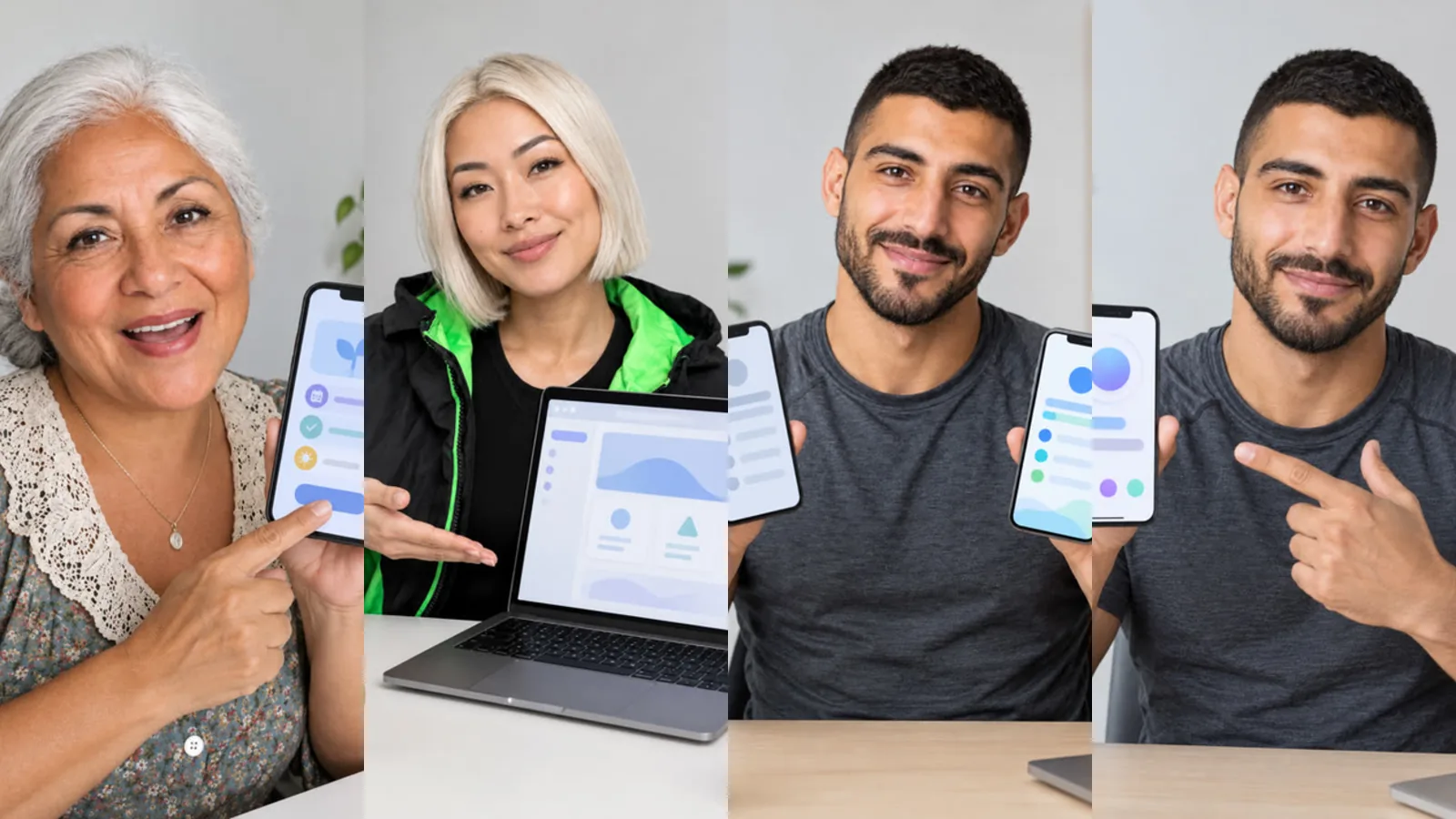
If you sell an app, a SaaS product or an online shop, the most convincing video shows your real screen. AI Influencer Studio can place a screenshot of your app or website on the phone or laptop your influencer holds. This guide explains where that works, which method to use for what, and how to prepare a screenshot that reads well.
Three ways to show a screen
- Scene video: your screenshot is placed on the device in a generated scene, for example the character turning a laptop to camera.
- Recreate a template: the screenshot is placed on the device in the start frame and the template's movement is applied.
- Screen shot in a long video: your screenshot fills the frame with a slow zoom while the character narrates. Nothing is generated, so every pixel is yours.
Which scenes and templates suit screens?
The "Tech & digital" category has scenes made for apps and websites: I found this app, Website tour, Software demo, 3 apps that changed my life, Gaming reaction, AI tool demo, QR / link call-to-action, Before / after screen, Coding vlog and Meeting presentation. There are also 11 tech templates to recreate, such as app discovery, turning a laptop to show a site, tap and wow, a new device first look and a meeting pitch. The screens in our templates are generic and unreadable, so your screenshot replaces them.
Step by step in a scene video
- Open the Video tab, choose Scene video and pick a scene from Tech & digital.
- Choose your character.
- In the optional "Screenshot" field, add a screenshot of your app or site.
- Add direction if needed, for example "holds the phone close to camera".
- Choose speech, tier and length, check the price and start.
In a scene video the screenshot uses one product image slot. In recreate, add it the same way; it goes into the start frame with your character.
How do I make the screen readable?
In scene and template videos the screen is part of a generated image and then moves with the device, so very small text can soften. A few habits help:
- Use a simple screen with large elements: a home screen, one key feature, a big number or a clear button.
- Use a phone screenshot for phone scenes and a desktop screenshot for laptop scenes, so the shape matches.
- Crop away status bars, notifications and anything you do not need.
- When exact text matters (prices, terms, a code or a long interface), use a screen shot in a long video, which shows your screenshot unchanged.
Using screens in long videos
In the Long video tab you can add up to four screenshots in the settings. Sam can then plan Screen shots in the storyboard, and you can assign a specific screenshot to each one. Screen shots cost only the narration, because no image or video is generated for them. A common pattern is a talking intro, two or three screen shots walking through features, a talking close and an end card with your link.
What should I not upload?
Only add screens you have the right to use, such as your own product or your own website. Remove personal data: customer names, email addresses, messages and account numbers. Do not use screens of other companies' products to suggest they endorse you.
Frequently asked
Can I use a screen recording instead of a screenshot? Not yet. Screens are added as images. For several screens in one video, use multiple screen shots in a long video.
Will the character's hand cover my screen? It can, as in real footage. Choose scenes where the device faces the camera, and add direction such as "holds the phone at the bottom edge".
Does a screenshot cost extra? No separate fee. In a scene it takes a product slot; in a long video a screen shot costs only its narration.